eDistrict UP 2026: Login, Certificate Status, Download & Online Application
One complete guide to Uttar Pradesh's certificate portal — how to register on eSathi, apply for income, caste, domicile, birth and death certificates, track your application with an SRN, download the signed PDF, and fix the problems that stop most people.
On this page
- What is eDistrict UP?
- eDistrict vs eSathi vs CSC — the difference
- Certificates you can get
- Certificate fees: eSathi vs CSC
- Registration and login, step by step
- How to check application status
- How to download your certificate
- How to verify a certificate
- Online vs CSC vs Tehsil office
- Common problems and fixes
- Delays and your legal rights
- Practical tips before you apply
What is eDistrict UP?
eDistrict UP is the Uttar Pradesh government's online service-delivery platform for citizen certificates and related services. Through this single system, a resident of the state can apply for a certificate, follow its progress and download the final digitally signed document — without repeated trips to the tehsil or block office. The platform covers all 75 districts of Uttar Pradesh and brings together more than 325 services from 47 government departments.
The system was launched in December 2008 under the National e-Governance Plan and is developed and run by the NIC UP State Unit, based at Yojana Bhawan in Lucknow. Since its launch, more than 36.90 crore certificates have been issued through it, which gives a sense of how central it has become to everyday paperwork in the state — scholarships, admissions, government jobs, bank work and court matters all routinely ask for certificates that originate here. In 2019, the platform received a Gems of Digital India Award (Analyst's Choice).
One point that confuses many first-time users: citizens never deal with the "eDistrict" back office directly. Everything a citizen touches — registration, login, application, payment, status and download — happens on the citizen portal called eSathi, explained in the next section.
| Official portal | edistrict.up.gov.in |
|---|---|
| Citizen login (eSathi) | esathi.up.gov.in |
| Helpline | 0522-2304706 |
| [email protected] | |
| Payment | PAYGOV — UPI, net banking, debit card |
| DigiLocker | Connected — issued certificates are available at digilocker.gov.in |
| Coverage | 325+ services, 47 departments, all 75 districts of UP |
This page is an independent guide published by eDistrict UP Seva to help citizens use the official portal correctly. We are not the official website — see our disclaimer and about us pages.
eDistrict vs eSathi vs CSC — the difference most people miss
Three names come up again and again in this process, and mixing them up is the source of half the confusion (and half the login mistakes). Here is what each one actually is:
eDistrict is the back-end system. It connects district offices, tehsils and departments and moves your file from one officer to the next. As a citizen, you never log in to it — it works behind the scenes.
eSathi (eServices Access To Help Individuals) is the citizen portal at esathi.up.gov.in. This is where you register, log in, apply, pay and download. When anyone says "eDistrict UP login", this is what they mean.
CSC (Common Service Centre — Jan Seva Kendra / Lokvani Kendra) is a physical centre where an operator applies on your behalf. Operators use their own VLE credentials on a separate operator system — never your personal account. Read our CSC guide before visiting one, so you know the correct charges and how to avoid overpaying.
| eDistrict | eSathi | CSC | |
|---|---|---|---|
| What it is | Back-end system linking district offices | Citizen portal | Physical service centre |
| Who uses it | Government officers | You, the citizen | Operators, on your behalf |
| Fee per certificate | — | ₹10–15 | ₹30 + extra facilitation charges |
| Where | edistrict.up.gov.in (information & status) | esathi.up.gov.in | Your nearest Jan Seva Kendra / Lokvani centre |
Certificates available on eDistrict UP
Revenue-department certificates are the most demanded services on the portal. Each of the main certificates below has its own detailed guide on this website — with the full document list, the exact application steps, rejection reasons and FAQs. Three further certificates (Haisiyat, Character and EWS) are covered in short sections right here, because most applicants only need the essentials for them.
Income Certificate (आय प्रमाण पत्र)
Certifies your family's annual income and is asked for in scholarship applications, school and college admissions, fee concessions and government scheme benefits. It is the single most applied-for certificate on the portal. Valid for 3 years.
Caste Certificate (जाति प्रमाण पत्र)
Needed to claim reservation benefits in education and government jobs. Certificates for SC/ST categories remain valid for a lifetime, while an OBC Non-Creamy Layer certificate is valid for 1–3 years and must be renewed as required. Our guide covers both cases separately.
Domicile Certificate (निवास प्रमाण पत्र)
Proves that you are a resident of Uttar Pradesh — required for state quota admissions, state government jobs and many state schemes. Once issued, it is valid for a lifetime and normally never needs renewal.
Birth Certificate (जन्म प्रमाण पत्र)
The first legal identity document of a child, needed for school admission, passport and most ID applications later in life. A birth certificate is a permanent record and never expires.
Death Certificate (मृत्यु प्रमाण पत्र)
Required by families for insurance claims, pension closure or transfer, bank accounts, property succession and most legal settlements after a death in the family. It is a permanent record.
Parivar Register Nakal (परिवार रजिस्टर नकल)
A certified copy of your family's entry in the village or ward family register. It is commonly used for ration card work, pension cases and property succession. Note that it is different from the newer UP Family ID — the two documents are not interchangeable.
Self-Declaration Form (स्व-प्रमाणित घोषणा पत्र)
Not a certificate, but a mandatory upload for income, caste and domicile applications. It must be filled, signed and uploaded as a JPEG image — the portal does not accept it as a PDF. Our guide explains how to fill it correctly, because an unsigned or wrongly formatted declaration is a leading cause of rejection.
Haisiyat Certificate (हैसियत प्रमाण पत्र) — Solvency Certificate
The Haisiyat certificate states your financial standing — essentially, official proof of what you are worth. It is most commonly demanded from contractors and firms bidding for government tenders and contracts, and anywhere else a department or institution needs verified proof of solvency before trusting you with work or money. Because it certifies a financial position rather than a simple fact, it is priced and processed differently from ordinary certificates: the fee is ₹120 on eSathi (₹120 plus extra charges at a CSC), processing takes 15–21 days, and the certificate remains valid for 3 years. Apply well before any tender deadline — this is not a document that can be arranged at the last moment.
Character Certificate (चरित्र प्रमाण पत्र)
A character certificate confirms that you have a clean conduct record, and it is typically demanded during job joining — especially in government and uniformed services — and in some visa and institutional processes. The application goes through the same eSathi route as other certificates and carries the standard ₹10–15 fee, with the usual 7–15 working day processing time. Unlike income or domicile certificates, it has no fixed statutory validity — the organisation asking for it usually wants a recently issued one, so apply close to the date you actually need to submit it rather than months in advance.
EWS Certificate (आर्थिक रूप से कमजोर वर्ग प्रमाण पत्र)
The EWS certificate is for applicants from the general category whose family income falls within the Economically Weaker Section limit. It is used to claim the EWS reservation in government jobs and educational admissions. It carries the standard ₹10–15 eSathi fee and 7–15 working day processing, but note its validity carefully: an EWS certificate is valid for one financial year only. If your admission or recruitment process crosses into a new financial year, you will need a fresh certificate — plan the timing before you apply.
Certificate fees — eSathi vs CSC (2026)
Applying yourself on eSathi is always the cheapest route. At a CSC you pay the government fee plus the centre's facilitation charges. The table below shows the standard position for the main certificates — fees can change, so always confirm the amount shown on edistrict.up.gov.in at the time you apply.
| Certificate | eSathi | CSC | Processing | Validity |
|---|---|---|---|---|
| Income | ₹10–15 | ₹30 + extra | 7–15 days | 3 years |
| Caste (SC/ST) | ₹10–15 | ₹30 + extra | 7–15 days | Lifetime |
| Caste (OBC NCL) | ₹10–15 | ₹30 + extra | 7–15 days | 1–3 years |
| Domicile | ₹10–15 | ₹30 + extra | 7–15 days | Lifetime |
| Birth | ₹10–15 | ₹30 + extra | 7–15 days | Permanent |
| Death | ₹10–15 | ₹30 + extra | 7–15 days | Permanent |
| Haisiyat (Solvency) | ₹120 | ₹120 + extra | 15–21 days | 3 years |
| EWS | ₹10–15 | ₹30 + extra | 7–15 days | 1 financial year |
Processing time depends mainly on how fast field verification moves in your area — a Lekhpal or Revenue Inspector has to verify your details on the ground. Where officers are active, revenue certificates are sometimes completed in 3–5 days; where files pile up, the full 15 days is normal. Do not pay anyone a "speed money" bribe to jump this queue — if someone demands extra money, use the complaint and helpline routes described in the legal rights section below.
Registration and login on eSathi — step by step
Every certificate application starts with a free eSathi account. Registration takes about ten minutes if you keep everything ready. Before you start, you need: a mobile number that is linked to your Aadhaar (the OTP comes only on that number — this is compulsory), your Aadhaar number (details are auto-filled from it during e-KYC), and an internet connection. Use the Chrome browser for the fewest problems.
Open the official portal
Go to edistrict.up.gov.in. This is the entry point for everything — status check, verification and the citizen login all start here.
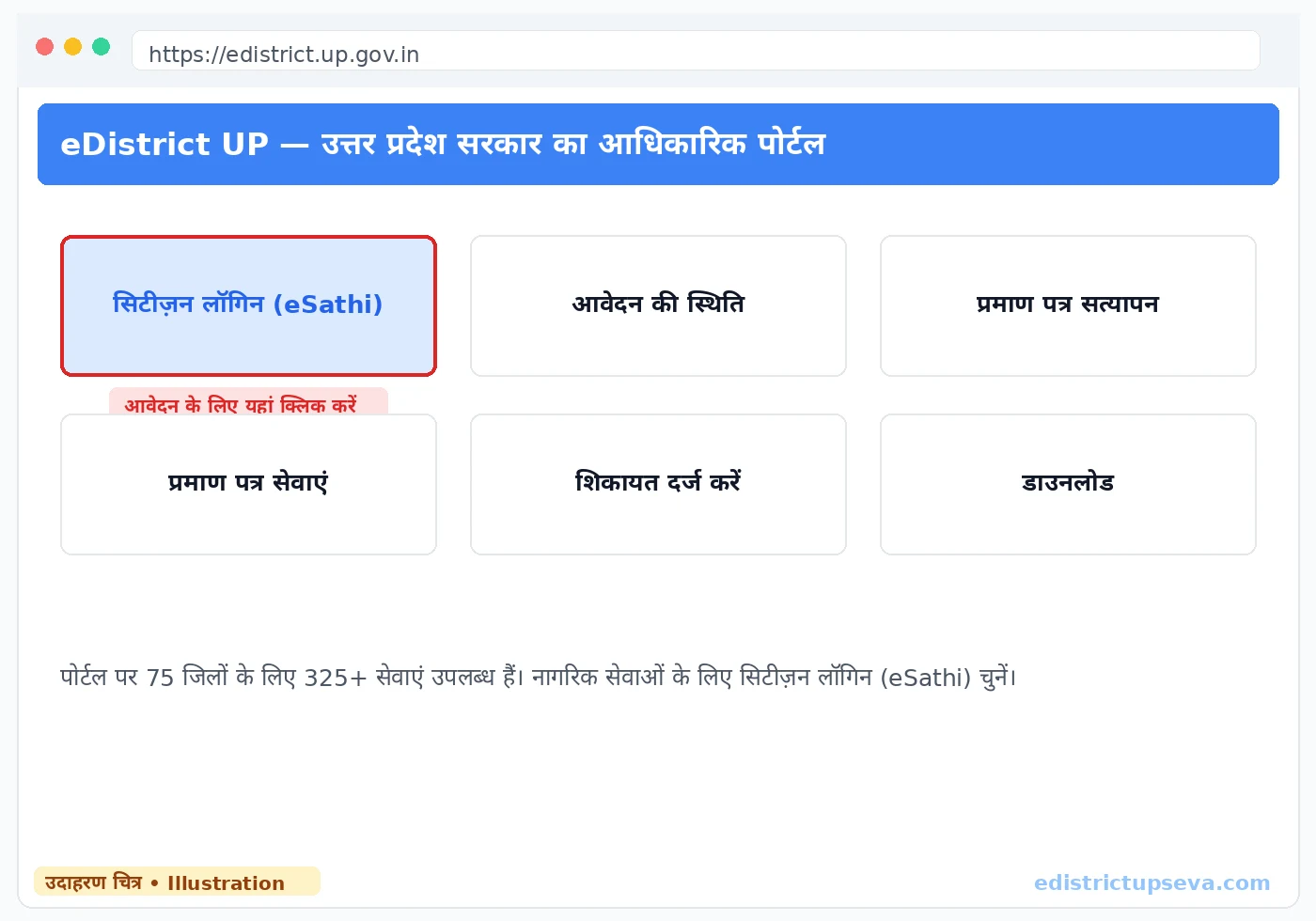
Click Citizen Login (eSathi)
On the portal, choose the Citizen Login option. This takes you to esathi.up.gov.in, the citizen portal where your account will live.
Click "New User Registration"
On the eSathi login page, select नवीन उपयोगकर्ता पंजीकरण (New User Registration) to begin creating your account.
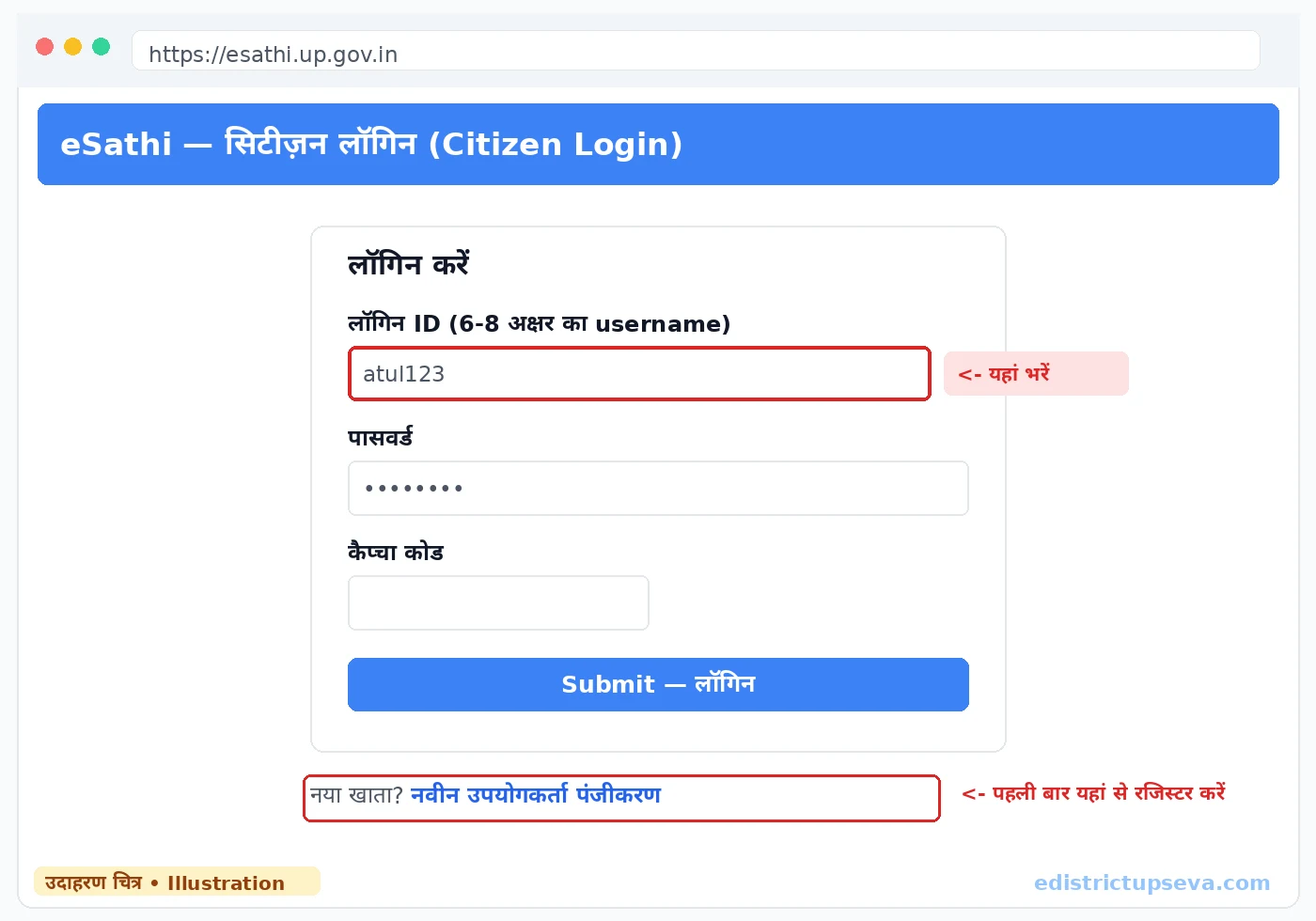
Create your Login ID
Choose a Login ID of 6–8 characters, letters and numbers only (for example, atul123 or raj2026), and confirm it with the "Check Availability" option. Write it down — this is your permanent username. It is not your mobile number, and you will need it for every login for years to come.
Fill in your details
Enter your name exactly as it appears on Aadhaar, date of birth, gender, full address with PIN code, district, mobile number and email (optional). A spelling mismatch between this form and your Aadhaar is one of the most common causes of later trouble, so check every field before moving on.
Enter the captcha and save
Type the captcha shown on screen and click Save to submit the registration form.
Verify with the Aadhaar OTP
An OTP is sent to your Aadhaar-linked mobile number. Enter it to complete verification — your name and photo are pulled from Aadhaar automatically at this stage.
First login and set your password
Log in for the first time with your Login ID and the OTP as a temporary password. The system will ask you to set a permanent password. Registration is complete — remember, registration itself is free; you pay only when you submit a certificate application.
Logging in afterwards
Open esathi.up.gov.in, enter your Login ID, password and the captcha, click Submit, and your dashboard opens with all your applications in one place.
Forgot your password or Login ID?
Forgot password: on the login page choose "Forgot Password", enter your registered mobile number, verify the OTP and set a new password. Forgot Login ID: choose the "Forgot Login ID" option and the ID is sent to your registered mobile by SMS. Mobile number changed? Recovery through the portal is not possible in that case — contact the helpline on 0522-2304706 or email [email protected].
The three types of login — only one is yours
- Citizen login (eSathi) — the one you use, at esathi.up.gov.in.
- CSC operator login — operators log in with their own VLE credentials at eseva.csccloud.in. Never hand your eSathi Login ID or password to a CSC operator; they do not need it to apply for you.
- Department login — for officers such as the Lekhpal, Tehsildar and SDM who process your file. Citizens never use this.
Common login errors and what they mean
| Error / problem | What it means and the fix |
|---|---|
| "Login ID already exists" | Someone has taken that username. Pick a different one — adding digits (for example, atul2026) usually works. |
| OTP not received | Check that the number is the one linked to Aadhaar. Wait out the 2–3 minute cooldown before retrying, check the SMS spam folder, and in peak season (July–September) try early morning, 6–8 AM. |
| Captcha keeps failing | Clear the browser cache, use Chrome, try an incognito window (Ctrl+Shift+N) and switch off ad-blockers for the portal. |
| "Invalid Login ID or Password" | The most common cause: entering your mobile number as the username. The Login ID is the 6–8 character username you created at registration. Also check Caps Lock before retrying. |
| "Mobile number already registered" | One number can hold only one account. You almost certainly registered earlier — recover the existing account through "Forgot Login ID" instead of creating a new one. |
| Portal not opening / very slow | Traffic peaks during scholarship (July–September) and exam seasons. Try between 6–8 AM or after 10 PM, on Chrome, with the cache cleared. |
| "Session expired" | The portal logs you out after roughly 15–20 minutes of inactivity. Keep every detail and document ready before you start, and fill the form in one sitting. |
How to check your application status
The fastest way needs no login at all — just the SRN (Service Request Number) you received by SMS when you submitted the application.
Without login — using your SRN
Open edistrict.up.gov.in
Go to the official portal home page.
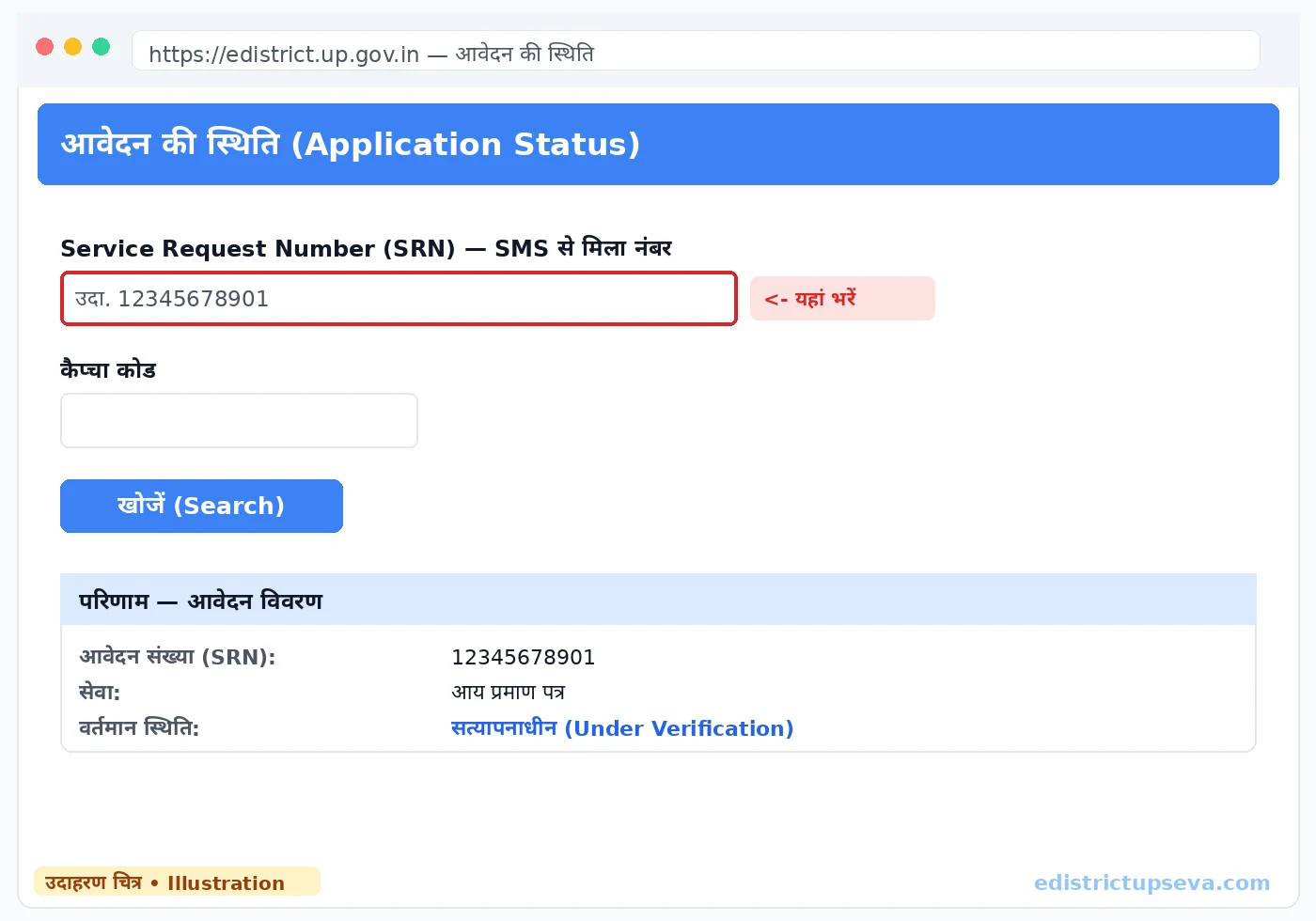
Click "Application Status"
Choose आवेदन की स्थिति (Application Status) on the portal.
Enter your SRN
Type the Service Request Number from your submission SMS. It is also visible against the application on your eSathi dashboard if you have lost the message.
Captcha, then Search
Fill the captcha and search — the current stage of your application is displayed.
With login
Log in at esathi.up.gov.in and your dashboard lists every application together — SRN, certificate type, submission date and current status — which is more convenient when you have applied for several certificates.
What every status label means
| Status shown | Meaning | What you should do |
|---|---|---|
| प्रेषित (Submitted) | Your application has entered the system. | Wait — it is normally assigned to the Lekhpal within 1–2 days. |
| सत्यापनाधीन (Under Verification) | The Lekhpal / Revenue Inspector is carrying out field verification. | This is the longest stage (about 5–10 days). Make sure someone is present at the address to meet the verifying officer. |
| लेखपाल रिपोर्ट प्रतीक्षित (Lekhpal Report Awaited) | The Lekhpal has not yet sent the verification report. | Wait up to 15 days in total, then escalate using the routes in the legal rights section. |
| तहसीलदार को अग्रेषित (Forwarded to Tehsildar) | Verification is done and the file is with the Tehsildar. | Good news — signing usually follows within 2–5 days. |
| स्वीकृत (Approved) | Your application is approved and the signed PDF is being generated. | Wait 24–48 hours for the status to change to Certificate Generated. |
| प्रमाण पत्र जारी (Certificate Generated) | The certificate has been issued and is ready. | Download it — see the download section below. |
| अस्वीकृत (Rejected) | The application has been rejected; the reason is recorded in eSathi. | Log in, read the reason, correct the problem and apply again. There is no penalty. |
| संशोधनाधीन (Correction Required) | A small defect needs fixing before the file can move ahead. | Log in, read the correction note, fix it and resubmit — your SRN stays the same. |
Why applications "get stuck" — the verification chain
Understanding the chain explains almost every delay. You submit the application; the system assigns it to the Lekhpal (in rural areas) or Revenue Inspector (in urban areas); that officer carries out field verification — physically checking your details at your address, which is where most of the waiting happens; the report then goes to the Tehsildar, who applies a Digital Signature (DSC); and only then is the certificate issued. A file sitting at "Under Verification" is almost always waiting on that one field visit, not lost.
How to download your certificate
Precondition: your status must show "प्रमाण पत्र जारी" (Certificate Generated). If it only shows "स्वीकृत" (Approved), wait 24–48 hours for the signed PDF to be generated.
From eSathi
Log in to eSathi
Open esathi.up.gov.in and log in with your Login ID and password.
Open "Completed Applications"
Click पूर्ण आवेदन (Completed Applications) on your dashboard.
Click your application
Find your application in the list and click its name — the full application opens.
Print → Save as PDF
Click the "Print" button in the opened application. In the browser's print dialog, choose "Save as PDF" and save the file. That PDF is your certificate.
From DigiLocker
Issued certificates also sync to DigiLocker. Log in at digilocker.gov.in, open Issued Documents and look for your certificate there. The sync can take a few days after issue, so if it is not visible yet, download from eSathi first and check DigiLocker later.
What you actually get
The download is a digitally signed PDF carrying your Certificate Number, a QR code and the Digital Signature (DSC) of the Tehsildar/SDM. That PDF is the official certificate — there is no separate physical version to collect. You may print as many copies as you need; the QR code and Certificate Number remain verifiable on every copy.
Legal validity: under Section 5 of the IT Act, 2000, this digitally signed certificate is valid across India — in courts, universities, government offices and banks. No separate attestation is needed.
If the download is not working
- Use Chrome; clear the cache, switch off ad-blockers, or try an incognito window.
- On a phone, enable "Desktop site" mode in the browser.
- If the PDF opens blank, delete it and download again on a stable internet connection.
- Applied through a CSC? You can still download it yourself — create your own free eSathi account, or go back to the CSC, or use DigiLocker.
- Check the details immediately after downloading. If something is wrong, do not try to edit the PDF — editing breaks the digital signature. The remedy is a fresh application with the correct information.
- Keep a backup in Google Drive or email, and print 3–5 copies for your records.
How to verify any eDistrict UP certificate
Verification is mostly done by third parties, not by you: universities check caste and domicile certificates during admission, recruitment boards and employers check income and domicile certificates for jobs, banks verify death certificates for insurance claims, and courts verify certificates produced as evidence. The good news is that anyone can verify a certificate — no login is needed.
Method 1 — by Certificate Number
Open edistrict.up.gov.in
Go to the official portal.
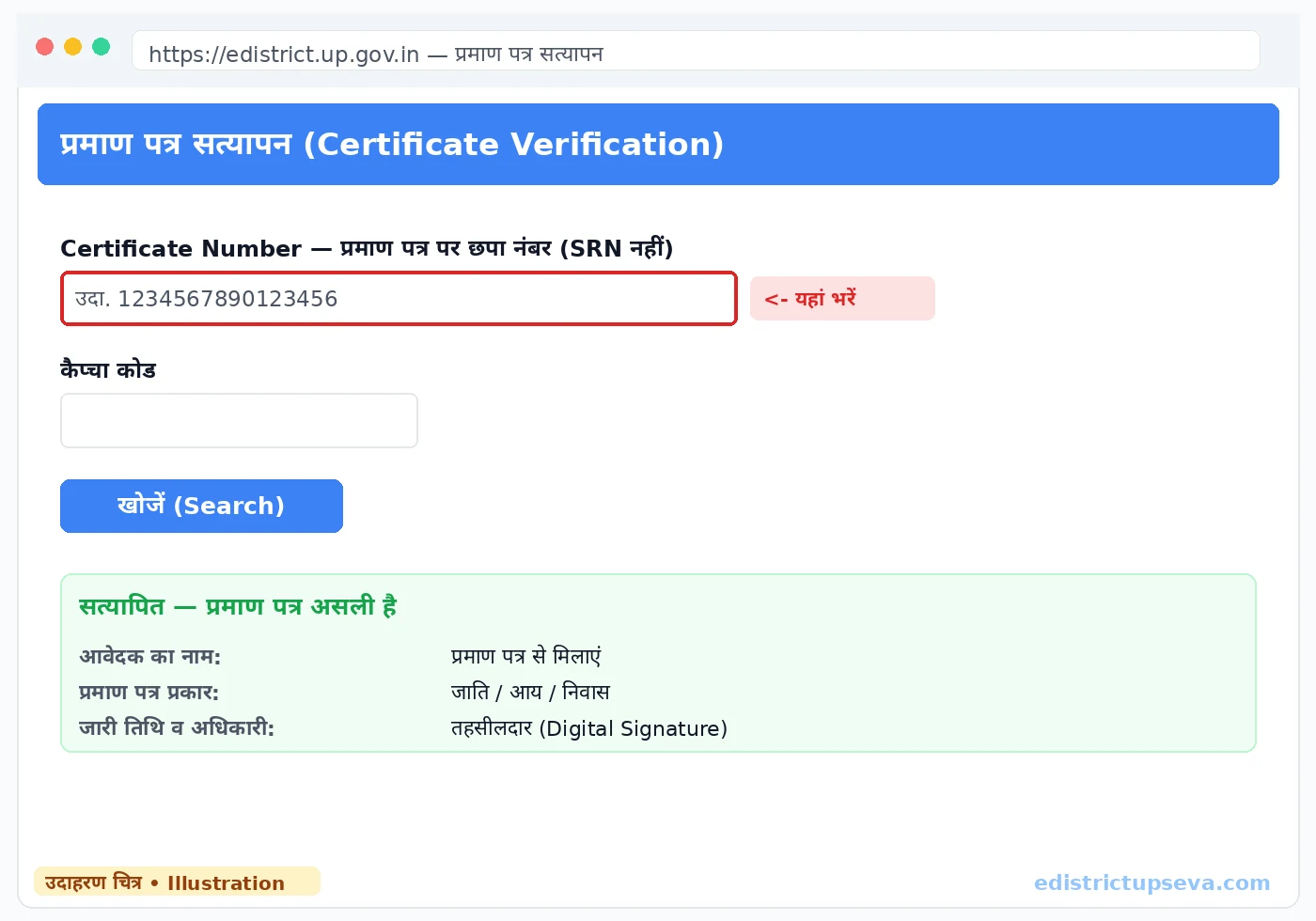
Click "Certificate Verification"
Choose प्रमाण पत्र सत्यापन (Certificate Verification) on the portal.
Enter the Certificate Number
Type the number printed on the issued certificate. It must be the Certificate Number — not the SRN, which will return no result here.
Captcha and search
Complete the captcha and search.
Match the details
The portal displays the applicant's name, certificate type, date and issuing officer. Compare these against the document in front of you — they must agree exactly.
Method 2 — QR code (fastest)
Point your phone camera at the QR code printed on the certificate, tap the link that appears, and the verification page opens with the result — the whole check takes under ten seconds.
If verification keeps failing: first confirm you entered the Certificate Number (not the SRN) and check for typing errors; then try the QR code. If a document still produces no record at all, it may not be genuine — report it to the issuing tehsil office and to [email protected].
Applying online vs CSC vs the tehsil office
There are three ways to get the same certificate. The document you receive is identical — what changes is cost, effort and how easily you can follow up.
| Factor | eSathi (online, yourself) | CSC / Jan Seva Kendra | Tehsil / block office |
|---|---|---|---|
| Cost | ₹10–15 government fee | ₹30 fee + ₹30–50 facilitation charges | No fixed official fee, but agent/tout charges of ₹200–500 are common |
| Effort | Apply from home in minutes | One visit to the centre | Repeated office visits |
| Tracking | Live status with your SRN, anytime | Depends on the operator informing you | Manual follow-up at the office |
| Payment | PAYGOV — UPI, net banking, debit card | Cash or digital at the centre | Cash and stamp paper |
| Fixing mistakes | Correct and resubmit online; SRN often stays the same | Another visit to the centre | Another office visit |
| Certificate you get | Digitally signed PDF with QR code | Same digitally signed PDF | Paper copy with manual signature and stamp |
Our recommendation: if you have a smartphone and an Aadhaar-linked mobile number, apply yourself on eSathi — it is the cheapest route and the only one where you can watch your file move. Use a CSC when you have no device or connectivity, and read the CSC guide first so you know the correct charges.
8 common problems — and their fixes
1. OTP is not arriving
Check your network first, then confirm the number is the one linked to Aadhaar. Wait out the 2–3 minute cooldown before requesting a fresh OTP, look in the SMS spam folder, and during the peak July–September season try in the morning. Temporarily switching off DND also helps some users.
2. Document upload keeps failing
Every file must be below 100 KB, in JPEG or PDF format. A black-and-white scan at 200 DPI usually lands within the limit; free online compressors can shrink larger files. One special rule catches many people: the self-declaration form must be uploaded as a JPEG — the portal rejects it as a PDF.
3. Application stuck at "Under Verification" for weeks
The normal window is 7–15 working days, most of it field verification. If 15 working days have genuinely passed, stop waiting silently — file a complaint on the portal and use the escalation ladder in the legal rights section.
4. Money deducted but status shows "Payment Pending"
Do not pay again. Payment reconciliation is automatic and usually completes within 24–48 hours. If it is still pending after that, contact the helpline with your transaction ID and a screenshot of the deduction.
5. Portal not opening or showing server errors
Scholarship season (July–September) and exam periods flood the portal with traffic. The reliable windows are early morning (6–8 AM) and after 10 PM. Use Chrome, clear the cache, and switch between Wi-Fi and mobile data if one is struggling.
6. Application rejected
Log in to eSathi and read the recorded reason. The usual causes are blurry scans, a name that does not match Aadhaar, a missing self-declaration form, selecting rural instead of urban (or the reverse), and the Lekhpal being unable to verify anyone at the given address. Fix the specific issue and reapply — there is no fine or penalty.
7. Forgot Login ID
Use "Forgot Login ID" on the eSathi login page — the ID is sent by SMS to your registered mobile. Do not create a second account on the same mobile number; the portal will block it as already registered.
8. Session expires mid-form
The portal times out after about 15–20 minutes. Keep all details and scanned documents ready before you log in, and complete the form in one sitting instead of leaving it open.
Certificate delayed? Your legal rights under the Janhit Guarantee Act
Most applicants do not know this: timely delivery of these certificates is not a favour, it is a legal guarantee. The UP Janhit Guarantee Act, 2011 covers most eDistrict revenue certificates and fixes a prescribed time limit for them — typically 7–15 working days. If that limit passes without your certificate being issued, the Act gives you a formal appeal route, and officers who delay without a valid reason can be fined.
The escalation ladder — use it in this order
Complain on the portal
Note your application date and the prescribed time limit. Once the limit has passed, file a complaint (शिकायत) through the portal after logging in at edistrict.up.gov.in, quoting your SRN.
Call the helpline
Call 0522-2304706 with your SRN ready and note the complaint reference you are given.
CM Helpline 1076 / IGRS
If a week passes without resolution, raise the matter on the CM Helpline (1076) or through IGRS, the state's grievance system, again citing your SRN and application date.
First appeal — to the ADM
Under the Janhit Guarantee Act, you may file a written first appeal to the Additional District Magistrate (ADM) within 30 days of the prescribed time limit expiring. The appellate authority is required to hear and decide the appeal within the Act's own time frame.
Second appeal — to the DM
If the first appeal does not resolve it, a second appeal lies to the District Magistrate (DM) within 60 days, who exercises powers similar to a civil court in these matters.
This route matters most when a hard deadline is attached to your certificate — UP Scholarship last dates, document verification for UPPSC/SSC recruitments, and NEET state-quota counselling are the situations where a delayed certificate can cost a full year. Apply early in those cases, and start escalating the moment the prescribed limit is crossed rather than waiting and hoping.
Practical tips before you apply
Mind the season. July to September is scholarship season, when lakhs of students apply for income and caste certificates at once — the portal slows down and verification queues grow. If your need falls in that window, apply as early as you possibly can, use the early-morning hours for the portal, and never leave a certificate to the final week before a deadline.
Master documents checklist
Keep these scanned and ready before you log in — for almost every certificate on this page, the list is the same core set:
- Aadhaar card of the applicant
- Mobile number linked to Aadhaar (for OTP — non-negotiable)
- Passport-size photograph
- Ration card, where available
- Signed self-declaration form, scanned as a JPEG
- Address proof — voter ID or a recent utility bill
- Income proof for the income certificate — salary slip, bank statement or similar
- Supporting caste proof for the caste certificate — for example, a parent's caste certificate where available
File rules that save rejections
- Every upload must be below 100 KB, in JPEG or PDF format.
- Scan in black and white at 200 DPI — clear enough to read, small enough to upload.
- The self-declaration is the exception: JPEG only, never PDF, and it must be signed.
- Your name must match Aadhaar character for character across every form and document.
- Save your SRN the moment you get it — screenshot it, note it, and keep the SMS. Every status check, complaint and appeal runs on that number.
Follow these basics and the process is genuinely straightforward: one registration, one application, a wait of about one to two weeks, and a signed certificate you can download, verify and print for the rest of its validity. Start with the certificate you need from the certificates section above, and use the dedicated guide for that certificate — each one walks through its documents and steps in full detail.
Frequently Asked Questions
What is the eDistrict UP citizen login URL?
Are the Login ID and mobile number the same thing?
How much does a certificate cost on eDistrict UP?
How long does a certificate take to be issued?
Is a digitally signed certificate valid?
Are eDistrict UP and eSathi the same thing?
Do I need Aadhaar to register on eSathi?
How do I check my application status without logging in?
What is an SRN and how is it different from a certificate number?
I forgot my Login ID or password. What should I do?
The OTP is not arriving. What can I check?
How do I download my certificate after approval?
My application was rejected. What happens now?
How can a university or employer verify my certificate?
Why does my downloaded PDF show 'signature invalid'?
What documents do I need for income, caste and domicile certificates?
My application has been stuck for more than 15 days. What can I do?
Can I get my certificate made at a CSC instead of applying myself?
How long is each certificate valid?
Can I apply for a UP certificate from outside Uttar Pradesh?
Last updated: 22 October 2026